
Windows 11/10 comes with a new interface and almost every app has a new look now. Opening an app is easy. You need to type the first few initials of the app name in the search bar and you can jump to the app directly. In this post, we will learn about the Calculator app in Windows 11/10.
How to use the new Calculator in Windows 11/10
Type ‘Calculator’ in the taskbar search bar and select the top result to open this window. If you wish it frequently, you may pin it to your Start Menu.
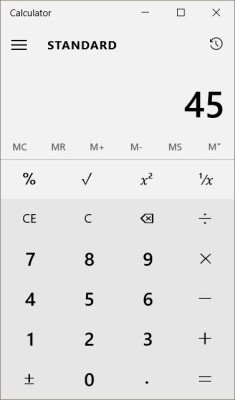
The new Calculator app can be easily resized to square, horizontal or vertical shapes.
The features are almost similar to the old one. You can use it in different modes like Standard Calculator, Scientific Calculator, Programmer and Converter. Just click on the Hamburger menu on the top left corner and you can see the modes in a dropdown menu. 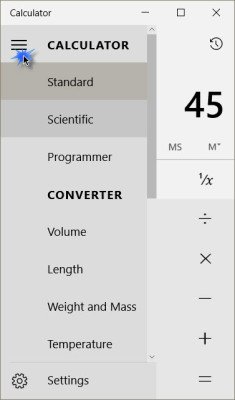
Standard Calculator
Here you can carry out normal calculations like additions, subtractions, divisions, multiplications, square roots, percentages and fractions. You can also save the calculations and view them in History tab given in the right panel of the app. Adding them to memory (M+) will save and display the figures under the Memory tab.
Scientific Calculator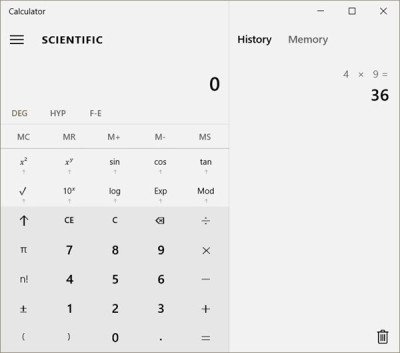
This fully featured Scientific calculator mode of the Windows 10 Calculator is very helpful for students, and they can perform typical mathematical calculations here. For example, Trigonometric functions in degrees and radians, and other standard functions like SIN, COS and TAN, which are useful for the high school student.
They can save a number in the calculator’s memory and use it for further calculations.
Programmer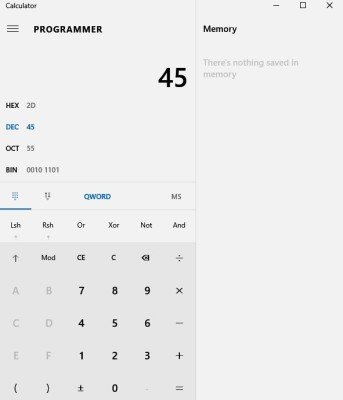
This mode of the calculator is specially designed for programmers who work for binary, decimal, octal and hexadecimal calculations, allowing QWORD, bitwise operations and Basic calculations.
Read:
- How to convert units in Windows 11 using Calculator
- How to use the Graphing Calculator in Windows 11.
Converter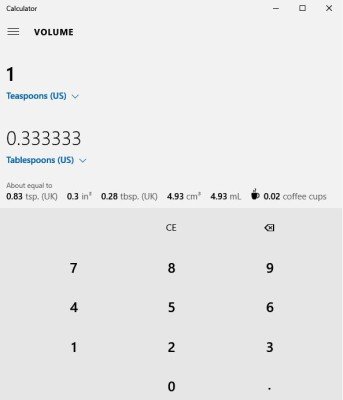
The converter in Windows 11/10 Calculator can help you convert units, including volume, length, weight and mass, temperature, energy, area, speed, time, power, data, pressure, and angle. It also lets you convert tablespoons into teaspoons under the Volume category.
Do let us know how you like the new Windows Calculator or if there are any other features you would like to see.
PS: More Windows 11 Tips and Tricks here.
