
If you cannot add your account to the new Outlook app in Windows 11/10, this post will show you how to fix the issue. Adding an account in the Outlook app is quick and easy. However, some users have reported running into problems while setting up their accounts.
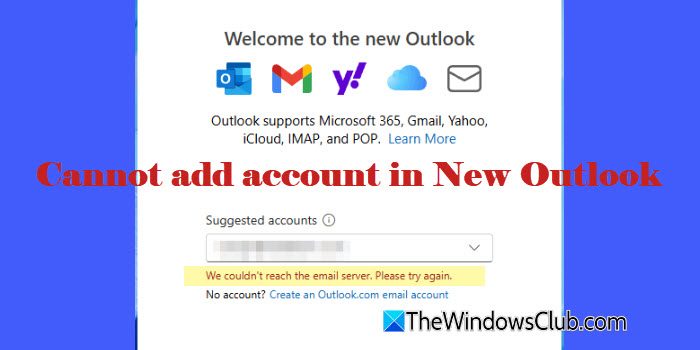
In some cases, a message appears that reads:
We couldn’t reach the email server. Please try again.
If you’re facing the same issue, keep reading to learn why it happens and how you can fix it.
Why won’t Outlook let me add a new account?
There could be several reasons why New Outlook may not let you add a new account. If the account type you’re trying to add isn’t supported in New Outlook (for example, a POP account or an on‑premises Exchange account), you might see the “couldn’t reach the email server” error. Sometimes, a corrupted local cache or outdated app data prevents the connection. The issue can also stem from incorrect credentials, missing licenses, or disabled IMAP/POP settings on your email provider.
Fix Cannot add account in Outlook app
If you cannot add an account in the new Outlook app for Windows 11/10, use these fixes:
- Enable the account for Outlook
- Clear the local Outlook state
- Switch to MS Outlook
- Check supported account types and enable IMAP/POP if needed
Let us see this in detail.
1] Enable the account for Outlook

If you have a Microsoft 365 work or school account hosted in Exchange Online, your mailbox might have the OneWinNativeOutlookEnabled setting set to False, due to which you’re not able to add the account in the New Outlook app.
Microsoft has introduced specific mailbox properties to enable administrators to control access to the New Outlook in the Windows environment. OneWinNativeOutlookEnabled is one such property that determines whether or not a user can use New Outlook. By default, this setting is blank, allowing the user to use New Outlook. To prevent a user from accessing New Outlook, an admin can set it to False.
In such a case, you can request the admin to set this property to True. If you have admin rights, you can run the following command in Exchange Online PowerShell:
Set-CASMailbox -Identity <MailboxIdentity> -OneWinNativeOutlookEnabled $true
Where <MailboxIdentity> is any value that uniquely identifies the mailbox. For example:
- Name
- Alias
- Email address
- User ID
After running the command, wait approximately 15–30 minutes for the change to propagate, and then attempt to add the account again.
2] Clear the local Outlook state
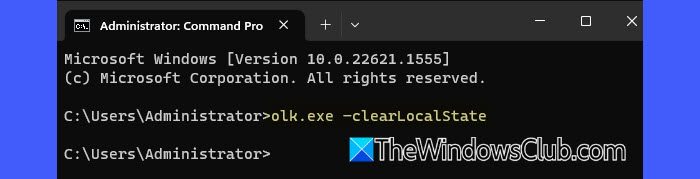
Sometimes, corrupted or outdated local data prevents New Outlook from connecting to a mailbox. By clearing the local state, you force Outlook to start fresh. The app rebuilds its cache and reconnects to your account, as if it were being set up for the first time, often resolving sign-in and sync issues.
To clear the local Outlook state, follow these steps:
Close the New Outlook app. Press Win + R to open the Run dialog, type cmd, and press Enter to open Command Prompt.
Then run the following command:
olk.exe --clearLocalState
Wait for the command to complete. Reopen New Outlook and try adding your account again.
3] Switch to MS Outlook
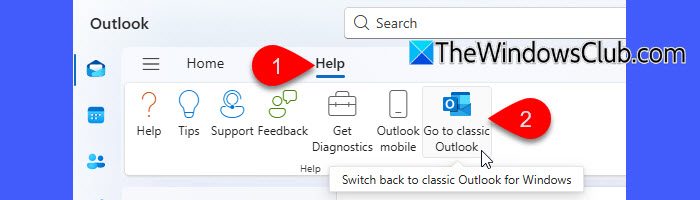
If the new Outlook app won’t let you add an account, you can temporarily switch back to Microsoft Outlook. Many users have reported successfully adding their mailboxes in Classic Outlook. Once the account is set up, you can switch back to New Outlook and continue using the mailbox without errors.
To switch from New Outlook to Classic Outlook, open New Outlook, go to the Help tab on the ribbon, and click Go to classic Outlook. When prompted, confirm the switch. Classic Outlook for Windows will launch automatically.
In Classic Outlook, go to File > Account Settings > Account Settings…. Under the Email tab, click New…. and follow the wizard to add your account.
Once the account is added properly, return to the top-right corner and toggle back to New Outlook.
4] Check supported account types and enable IMAP/POP if needed
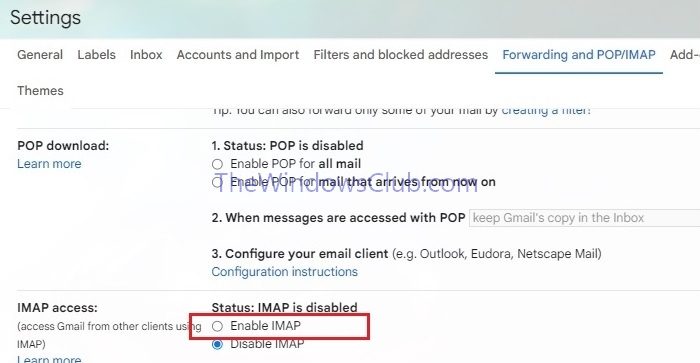
At present, New Outlook does not support POP accounts or on‑premises Exchange accounts (even if you’re using Exchange Server). It currently supports only Microsoft 365 work and school accounts (Exchange Online), Outlook.com / Hotmail as Exchange mailbox providers, and other third‑party accounts connecting through IMAP (Microsoft has confirmed that support for on‑premises Exchange and other hosted Exchange services will be added in a future update).
Ensure you’re using a supported account. If you’re trying to add a Gmail, Yahoo, or other IMAP account, make sure IMAP is enabled in the provider’s settings. After enabling IMAP and saving the changes, try adding the account in New Outlook again.
I hope this helps.
Read: How to use the new Outlook app on Windows.
How do I add an account to a new Outlook?
To add an account in the New Outlook on Windows 11/10, open the app and click the Settings gear icon in the top-right corner. Go to Accounts and click the Add account button under Your accounts. Enter your email address, choose Continue, and follow the on‑screen prompts to sign in and grant required permissions. Once the setup completes, your mailbox will start syncing automatically. For IMAP or POP accounts, you may need to use Advanced settings to enter server details manually.
Read Next: New Outlook app not working or opening.
